:format(webp)/madlyglobal.com/static/madlymaldives/img/logo-darkbg.png "Madly Global")
Hotel Help Centre
Get set up to start receiving online bookings
Access your Profile Dashboard
Access your account dashboard by clicking the user menu icon account_circle in the top navigation bar and selecting the My Profile option.
Add Contact Details
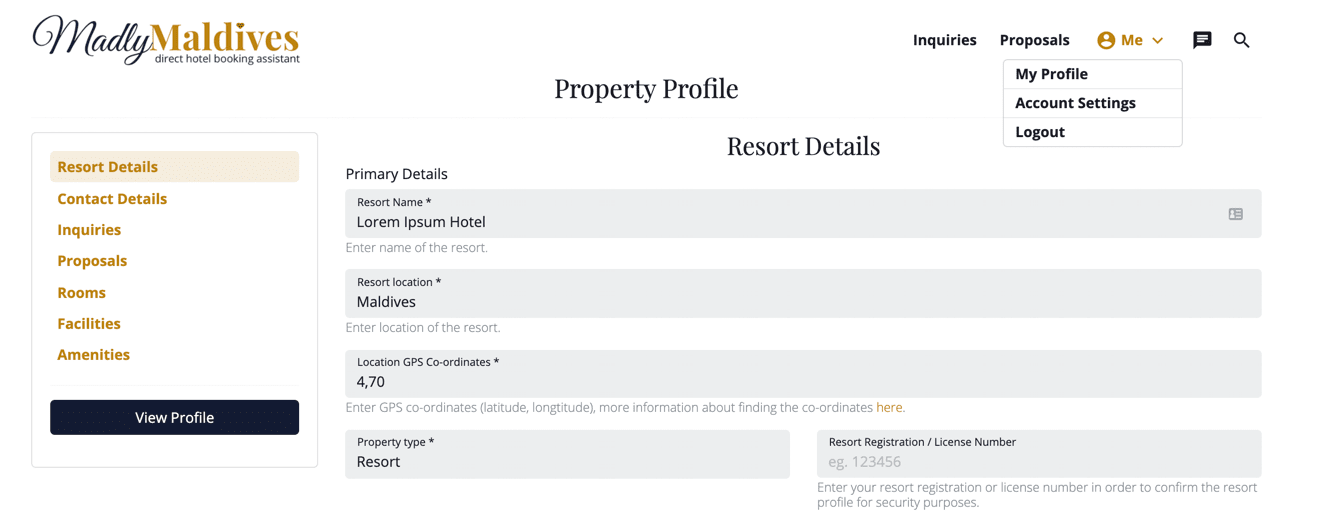
Add your primary reservations and accounts contact details for your property so we can contact you as required. The reservations contact will receive platform SMS and email notifications such as when a new inquiry is received or if a proposal is accepted. The accounts contact details are required for our reference so we know whom to contact regarding commercial matters. These contact details are not shared with the guest at any point.
Accept Commercial Agreement
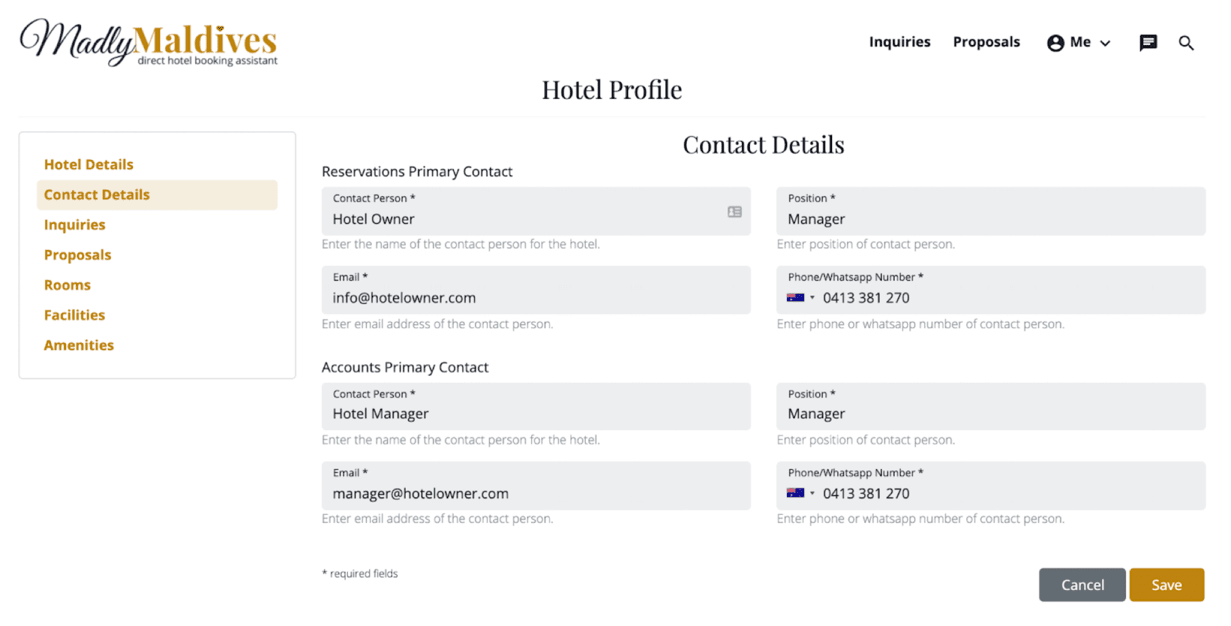
You must review and agree to the Commercial Agreement before we can approve your profile so you can start receiving inquiries.
Create Property Profile
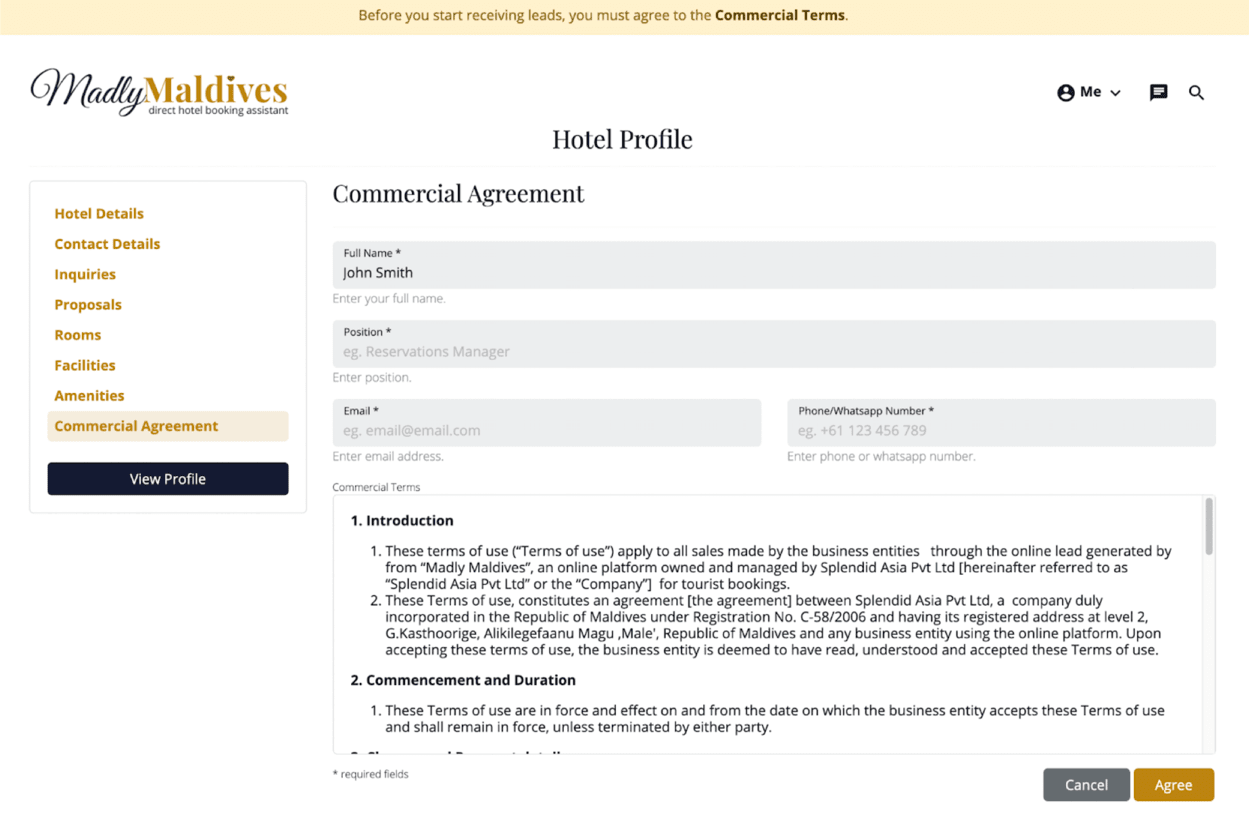
Start by setting up your property profile and adding content to be displayed on your public landing page such as Property Name, Location, Description, Banner and Gallery Images.
Moderation Details
The property name, location and property type will be displayed on your public profile and will assist users in finding a suitable property. All of these details will also be used to assist our moderators to verify and approve your profile so please make sure these details are entered correctly. Your hotel registration/license number is private and will not be shown on the website, it is used for internal moderation purposes only.
Description
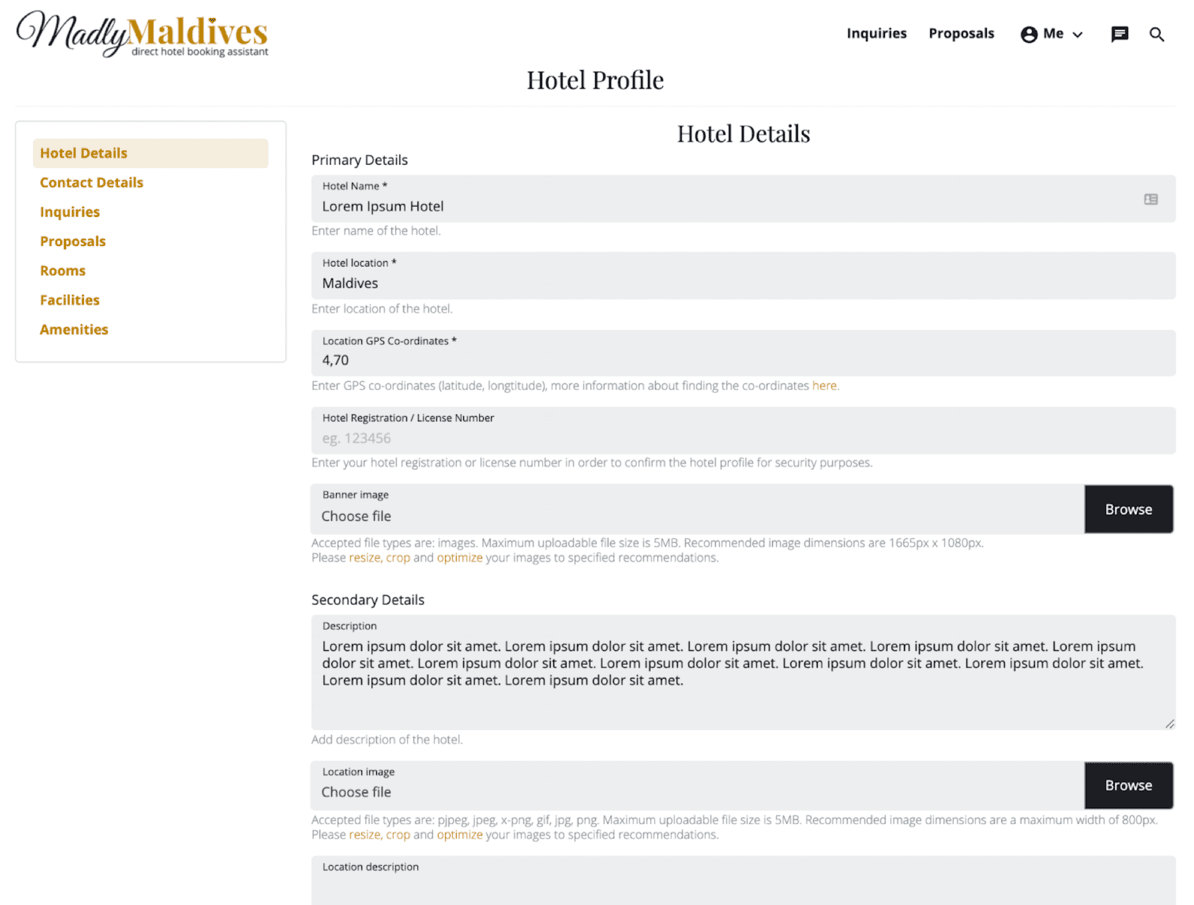
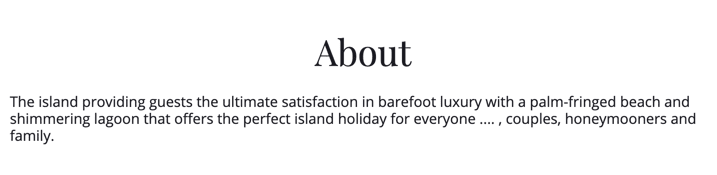
Add a property description to show off your property to your potential guests, The description will be displayed on the public hotel profile page and a snippet of this description containing the first 160 (approx) characters will be displayed on the search results of the platform so make sure you really sell your property in the first sentence of the description.
GPS Location
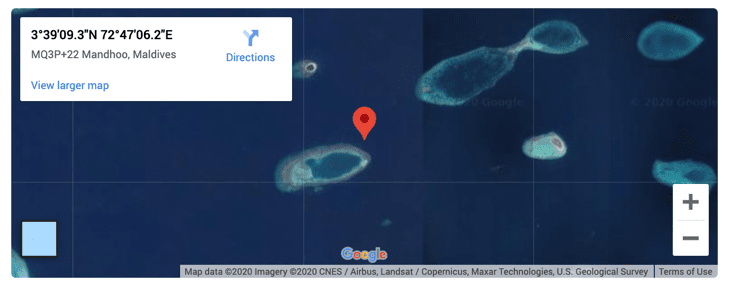
The GPS location will be used to add a map to your public profile so please make sure to supply these details correctly. You can find detailed instructions on obtaining the GPS coordinates (latitude,longitude) of your location here.
Images
Resizing, Cropping and Optimizing Images
It is important that your images are supplied with the specified dimensions so you have control over how they look on the page and it is not awkwardly cropped.
It is also important to optimize your images to reduce the file size which can cause the page to load very slowly and be a bad experience for end users.
There are services available to help you with these requirements:
Banner image
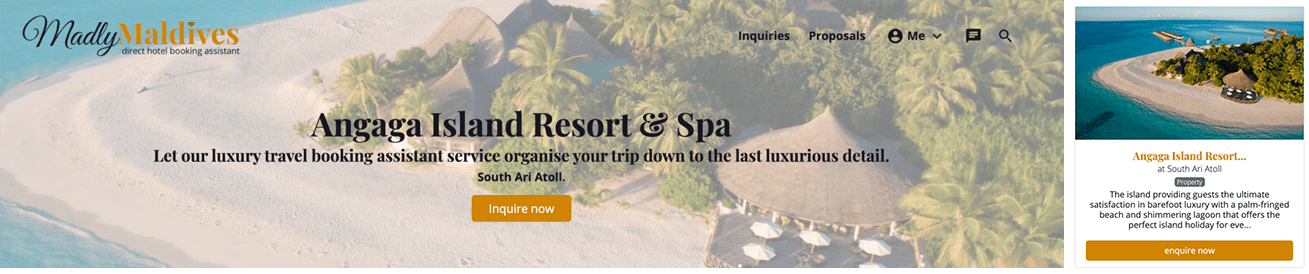
A slightly opaque version of your banner image will be displayed at the top of your public profile.
This banner image is also used as the feature image on the property tiles.
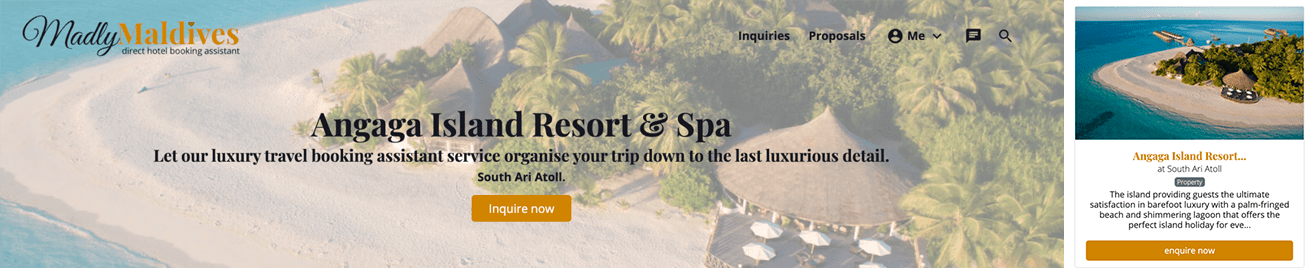
When uploading your banner image please ensure to follow the guidelines supplied.
“Accepted file types are: images. Maximum uploadable file size is 5MB. Recommended image dimensions are 1665px x 1080px. Please resize, crop and optimize your images to specified recommendations.”
Gallery images
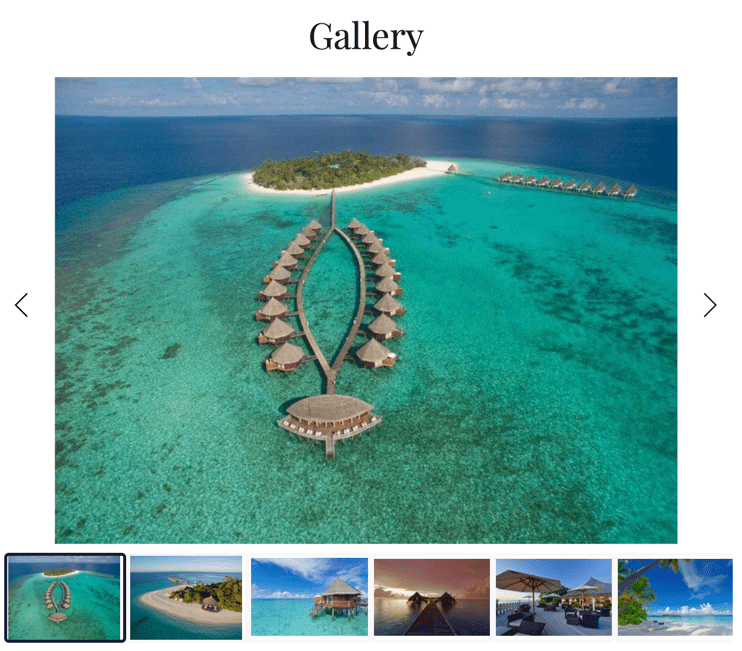
You can upload several images to the gallery to showcase your property to potential guests. The gallery is displayed on your public profile page.
When uploading your gallery images please ensure to follow the guidelines supplied.
“Accepted file types are: jpg, gif, pjpeg, jpeg, png, x-png. Maximum uploadable file size is 5MB. Multiple files may be uploaded. Recommended image dimensions are 805px x 520px. Please resize, crop and optimize your images to specified recommendations.”
Location image
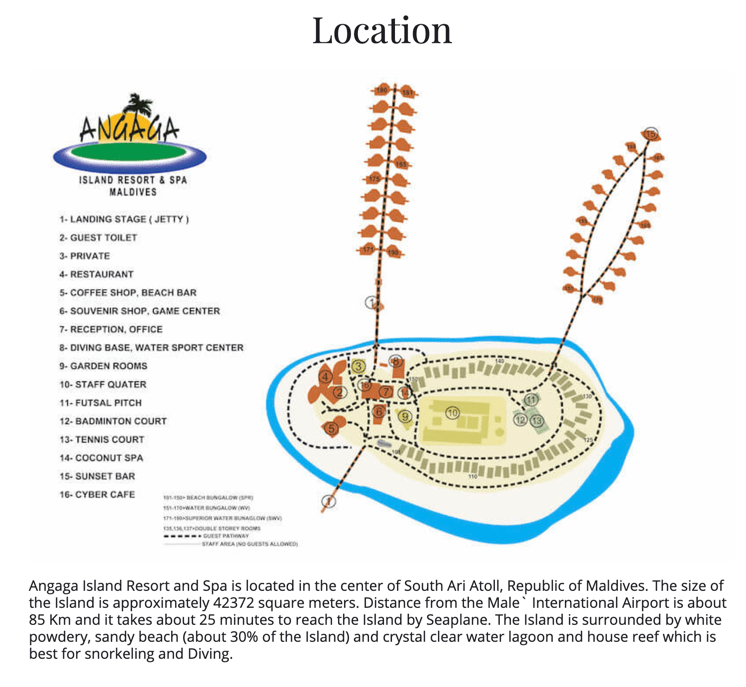
It is recommended that the location image you upload should be a map or general layout overview of your property such as the example provided. The location image is displayed on your public profile page.
You can also provide a textual description of the property location to be displayed on your profile.
When uploading your location image please ensure to follow the guidelines supplied.
“Accepted file types are: jpg, gif, pjpeg, jpeg, png, x-png. Maximum uploadable file size is 5MB. Recommended image dimensions are a maximum width of 800px. Please resize, crop and optimize your images to specified recommendations.”
Keywords
Add keywords to your property profile to help end users find you when searching.

Add Rooms
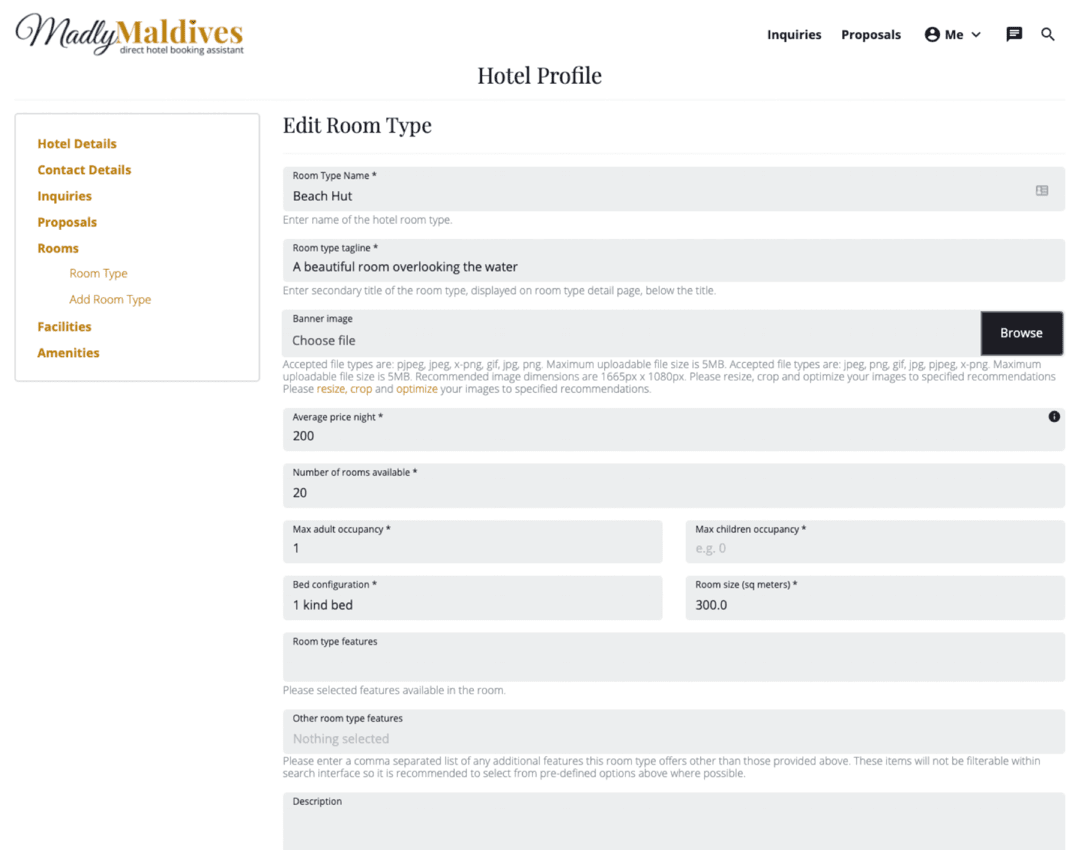
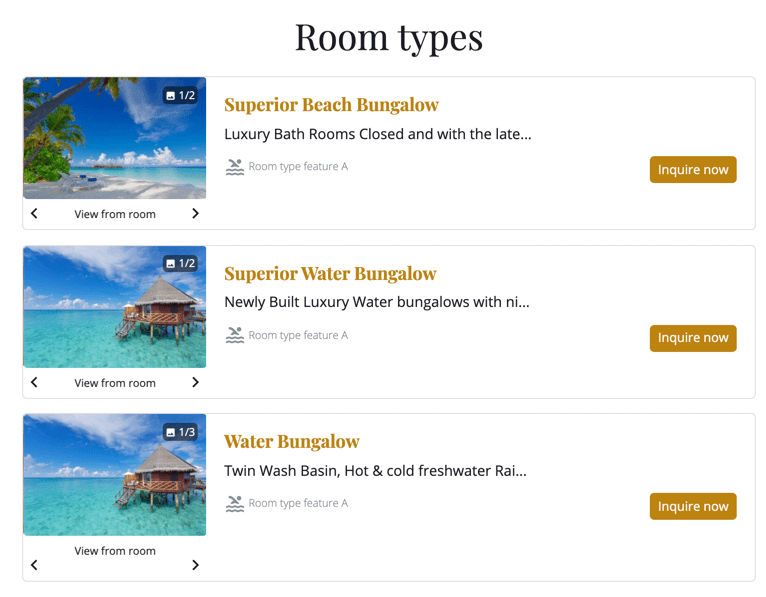
Add rooms to your profile to allow users to search, filter and send a more specific inquiry on a particular room type. The room price you specify isn’t shown to guests and is only used for filtering and sorting search results.
Add your room information here as it is partially used on your profile and will be further utilized to attract more leads to your profile in the future. Note - this feature is currently under development.
Room Type Features
You can select from a range of room type features to display regarding your room. You also have the option of providing a comma separated list (eg. amenity 1, amenity 2, amenity 3) of other features that aren’t available to select from. Although these other items will not be filterable within the search interface so it is recommended to select from the predefined options where possible.
Images
Resizing, Cropping and Optimizing Images
It is important that your images are supplied with the specified dimensions so you have control over how they look on the page and it is not awkwardly cropped.
It is also important to optimize your images to reduce the file size which can cause the page to load very slowly and be a bad experience for end users.
There are services available to help you with these requirements:
Banner Image
A slightly opaque version of your banner image will be displayed at the top of your public room type detail page.
This banner image is also used as the feature image on the room tiles.
When uploading your banner image please ensure to follow the guidelines supplied.
“Accepted file types are: jpg, gif, pjpeg, jpeg, png, x-png. Maximum uploadable file size is 5MB. Accepted file types are: jpeg, png, gif, jpg, pjpeg, x-png. Maximum uploadable file size is 5MB. Recommended image dimensions are 1665px x 1080px. Please resize, crop and optimize your images to specified recommendations. Please resize, crop and optimize your images to specified recommendations.”
Gallery Images
You can upload several images to the gallery to showcase your room to potential guests. The gallery is displayed on the room list items of your public profile page.
When uploading your gallery images please ensure to follow the guidelines supplied.
“Accepted file types are: jpg, gif, pjpeg, jpeg, png, x-png. Maximum uploadable file size is 5MB. Multiple files may be uploaded. Accepted file types are: jpeg, png, gif, jpg, pjpeg, x-png. Maximum uploadable file size is 5MB. Recommended image dimensions are 1665px x 1080px. Please resize, crop and optimize your images to specified recommendations.”
Manage Rooms
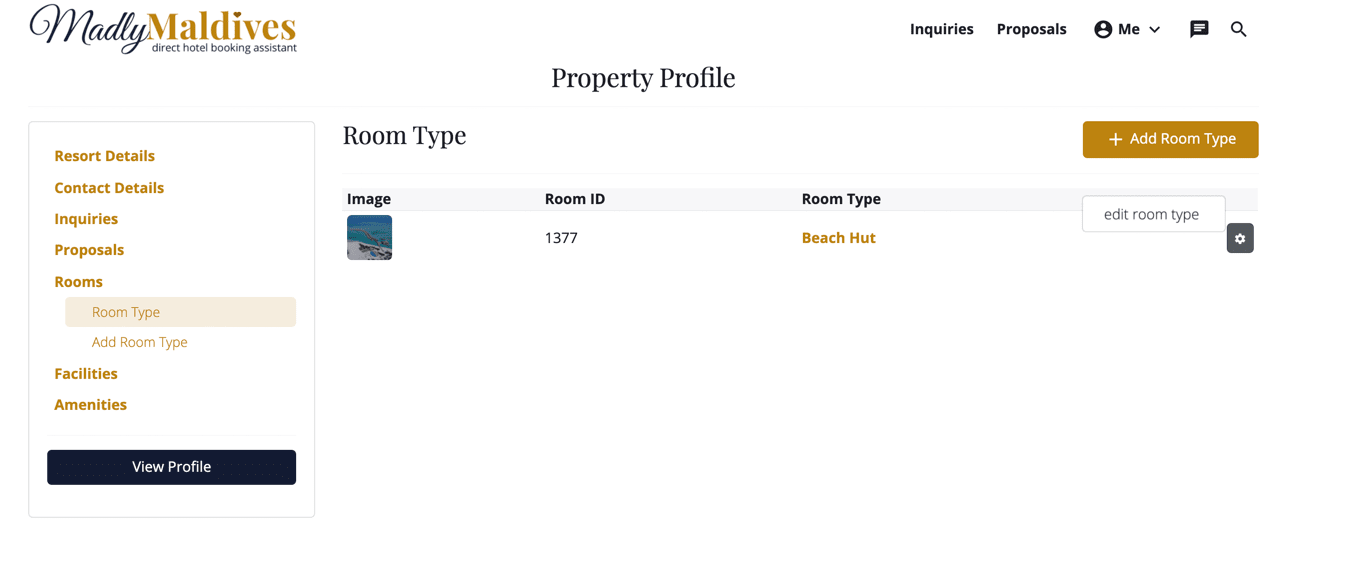
Manage the rooms you have added to your profile by clicking the functions icon settings to the right of the room item which will allow you to edit the room type. If you need to remove a room type from your profile please contact support.
Add Property Facilities
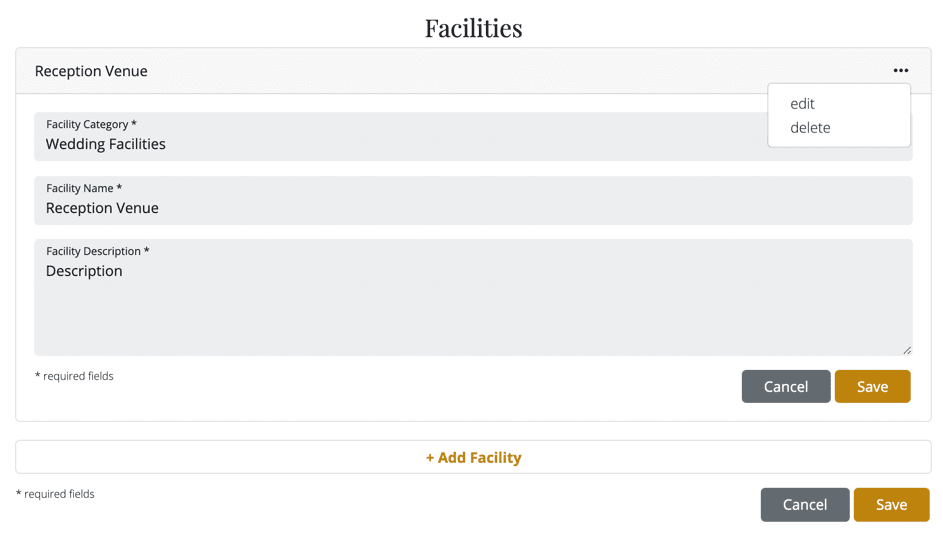
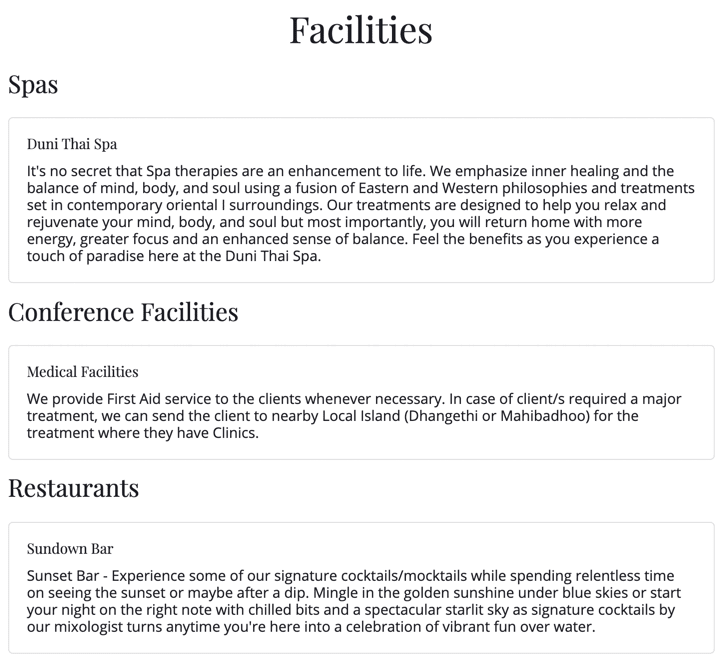
Add the facilities available at your property by selecting a facility category (eg. Wedding Facilities), defining a facility name (eg. Reception Venue) and providing a description of the facility available. You can add as many facilities as you would like and they will be displayed on your public profile.
You can edit or archive a facility that has been added by clicking on the more icon more_horiz to the right of the facility as shown below. Don’t forget to save any changes you make.
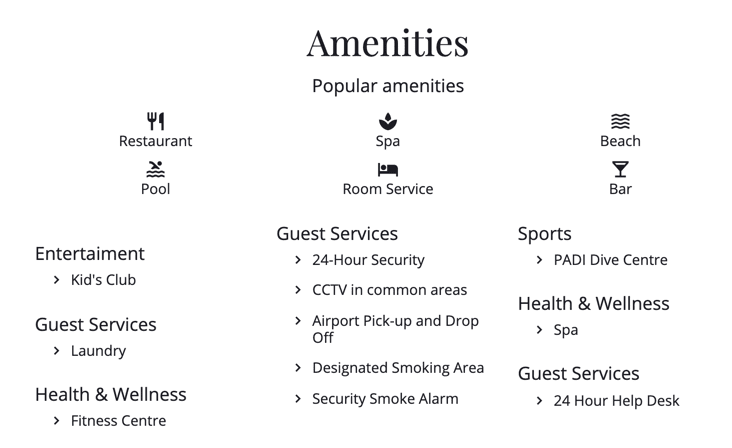
Add Property Amenities
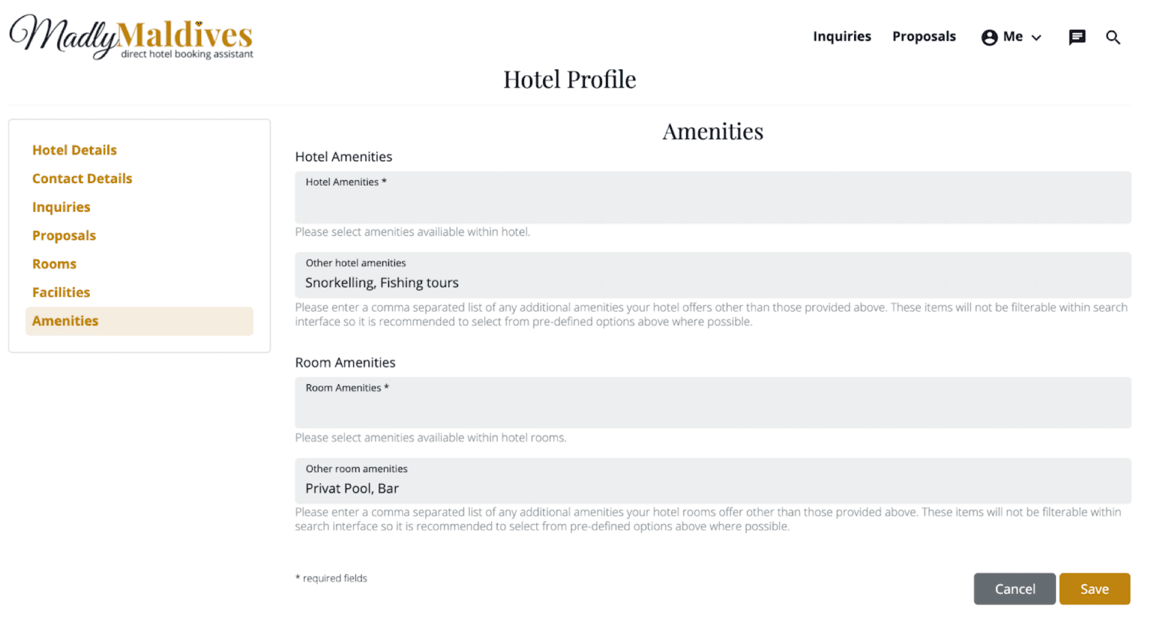
You can select from a range of hotel and room amenities to display on your public profile. You also have the option of providing a comma separated list (eg. amenity 1, amenity 2, amenity 3) of other amenities that aren’t available to select from. Although these other items will not be filterable within the search interface so it is recommended to select from the predefined options where possible.
Await Approval
When you have filled out your contact details, accepted the commercial agreement, and added profile details, room types, property amenities and facilities your profile will be marked for moderation and you will receive an email and SMS notification detailing the outcome. This typically takes 72 hours.
Start Receiving Inquiries
Manage Inquiries
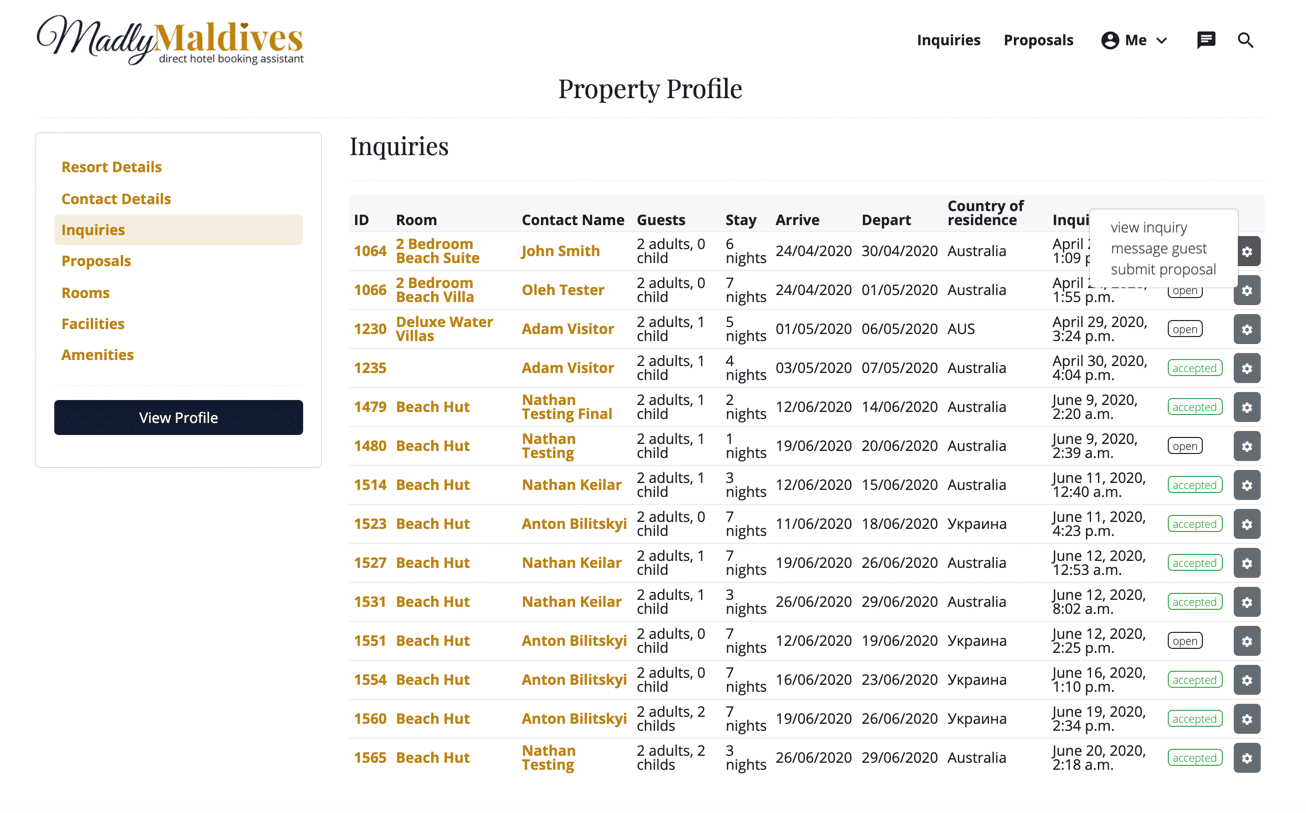
Once your profile has been approved, you can sit back and wait for the first inquiry! We will alert you via SMS and email so you can send the potential guest a proposal! You can access your list of inquires when logged in from anywhere on the site via the `Inquiries` menu item in the top navigation menu. You can also access your inquiries from the sidebar menu on your profile dashboard as shown below.
The inquiries table shows the main inquiry details such as the room the inquiry was made on, the name of the guest who inquired, the number of guests, length of stay and the desired arrival and departure dates for the trip. The date of inquiry is also shown so you can make sure you respond with a proposal in a timely fashion.
By clicking the functions icon settings to the right of a particular inquiry you are able to view the inquiry details, message the guest directly via the messenger interface about this inquiry or submit a proposal.
View Inquiry Details
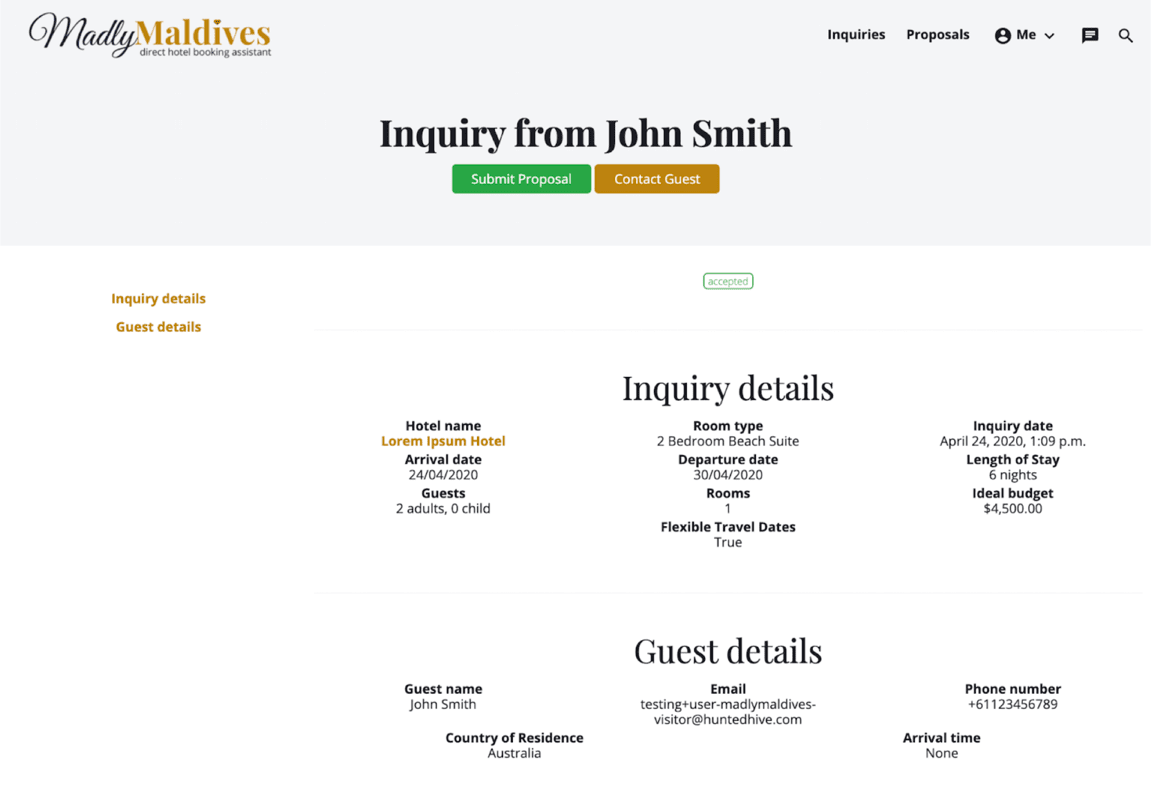
The inquiry details page shows a complete view of the inquiry created by the potential guest, you can also submit a proposal or contact the guest directly from this view.
Submit a Proposal
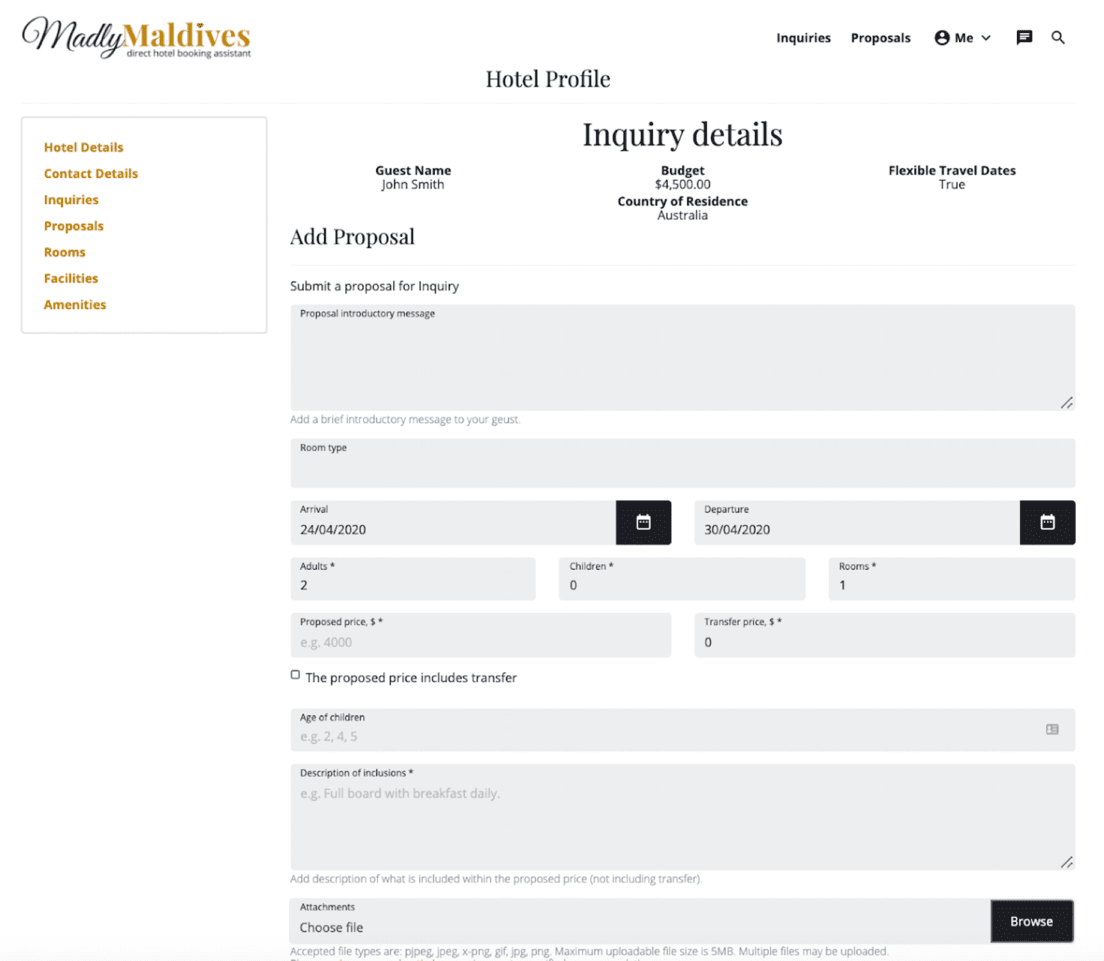
You can submit a proposal directly to a guests inquiry providing a friendly introduction message to the guest, with the ability to modify the inquiry details such as specifying a different room type or dates, if what the guest requested is not available.
You must also specify a proposed price which may or may not include a transfer fee for the guest, as well as a list of inclusions. You may also upload attachments and send through an invoice with this proposal. It is required that you upload any documentation to the proposal in image format as it is easier for users to view image files, and PDF files may pose a security risk in some circumstances. It is also recommended to provide any terms and conditions related to this offer as well as an expiry date for the proposal.
We will alert you via SMS and email when the potential guest accepts your proposal so you can make the final arrangements.
Manage Proposals
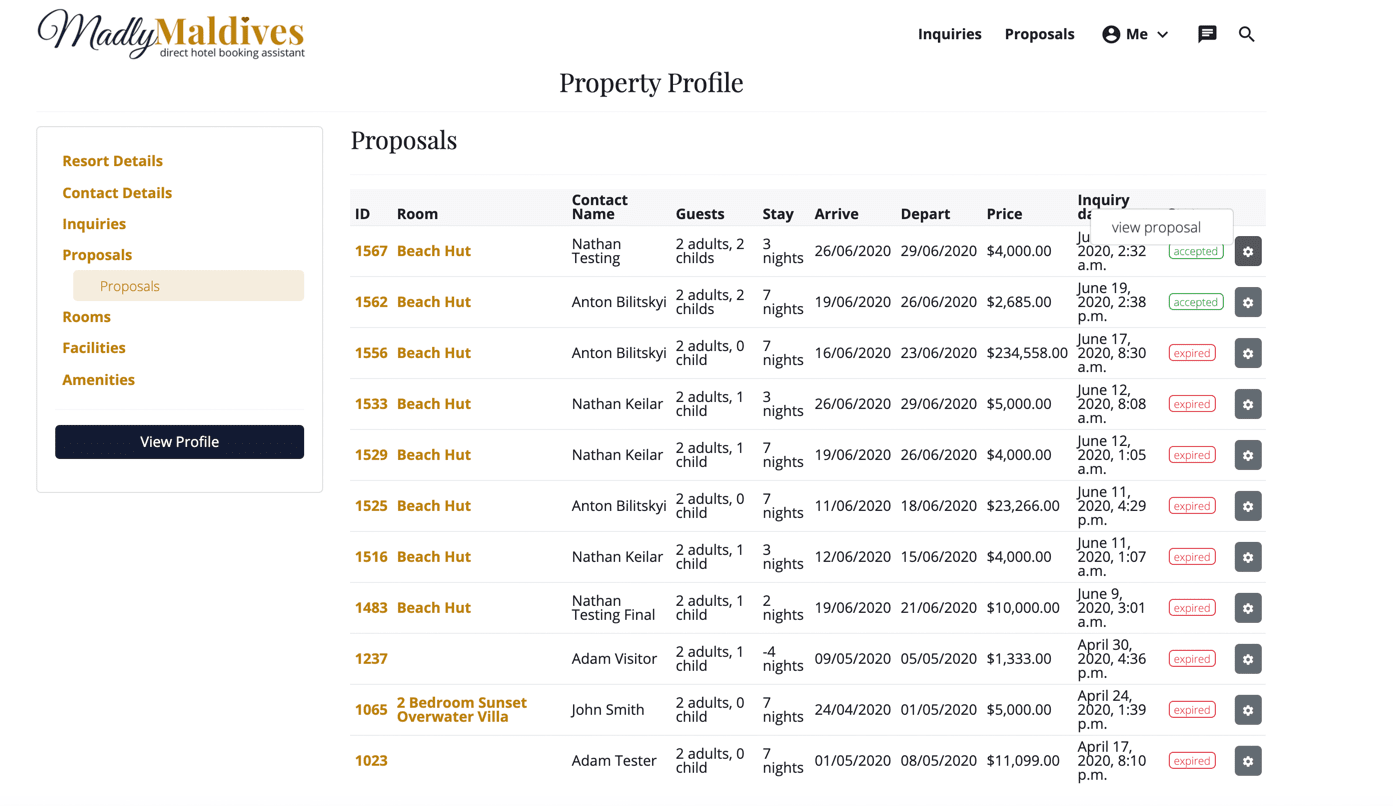
You can access your list of proposals when logged in from anywhere on the site via the `Proposals` menu item in the top navigation menu. You can also access your proposals from the sidebar menu on your profile dashboard as shown below.
The proposals table shows the main proposal details such as the room the proposal was offered on, the name of the guest who inquired, the number of guests, length of stay and the desired arrival and departure dates for the trip as well as the proposed price.
The table also clearly shows the proposal status so you can see if it was accepted by the guest or if it has expired so you can follow up as appropriate.
By clicking the functions settings icon to the right of a particular proposal you are able to view the proposal details.
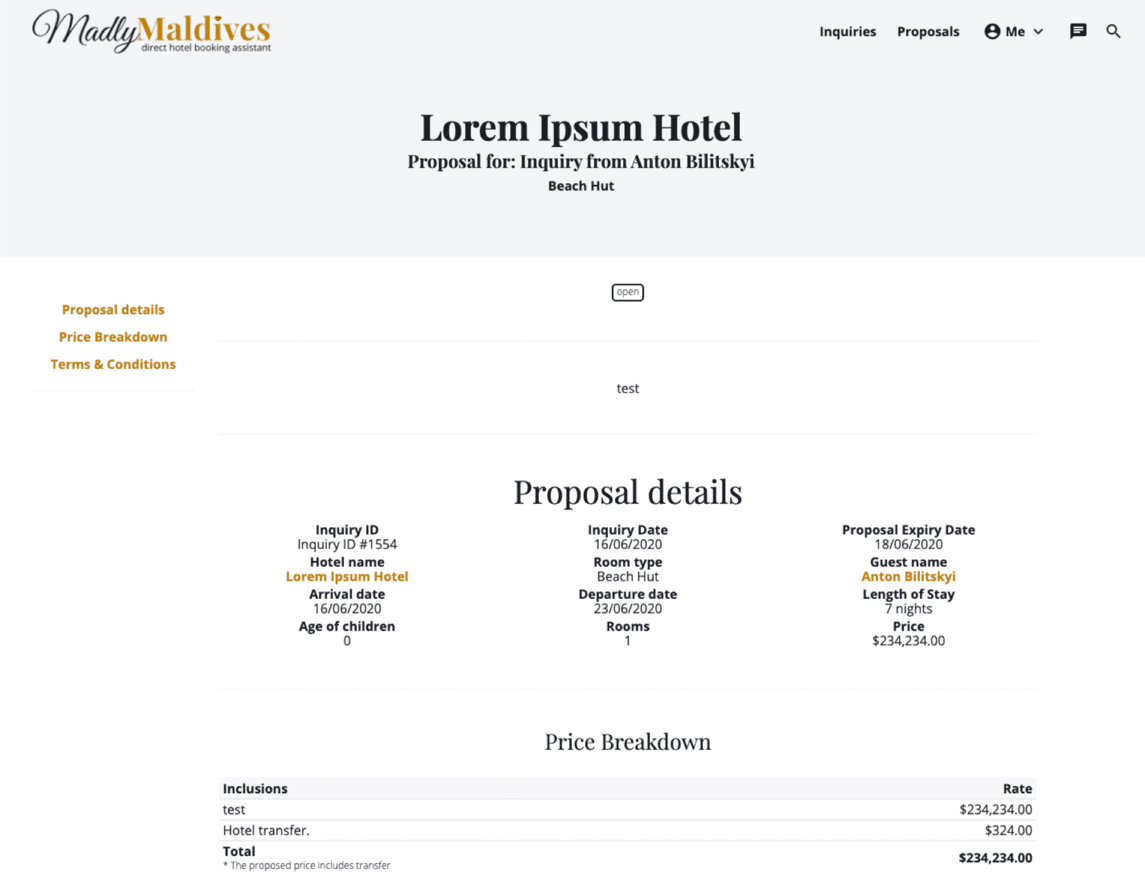
View Proposal Details
The proposal detail view shows an in depth view of the proposal you have sent to the guest including the complete price breakdown table showing transfer fees and any terms and conditions you have added, for future reference when discussing with the client.
Chat Directly with Guests
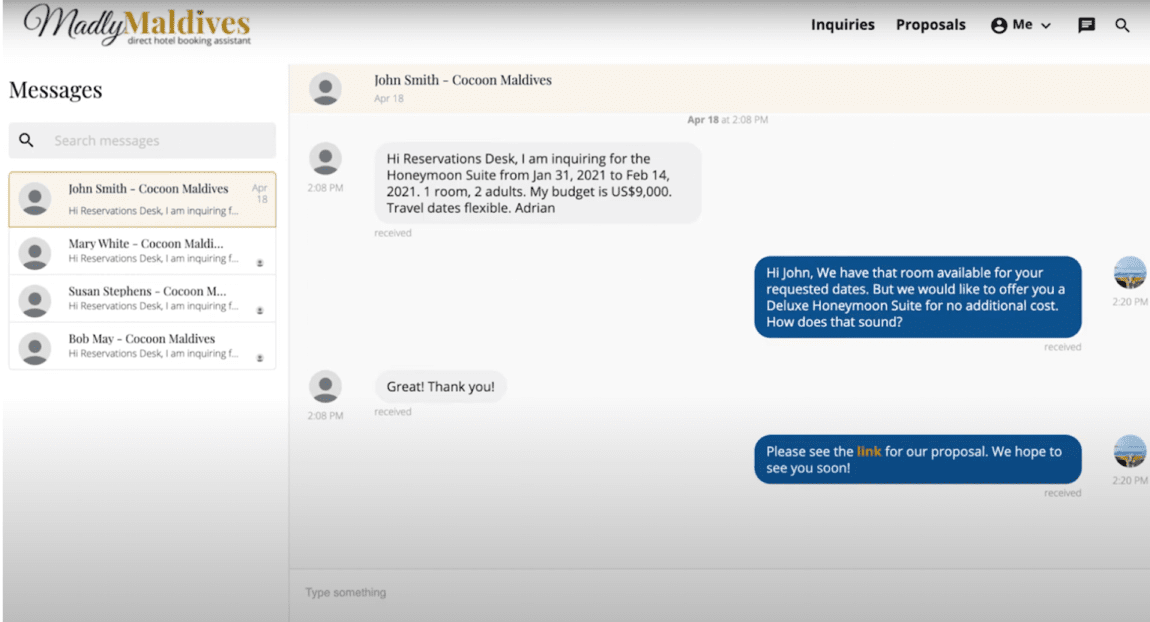
You can chat directly with guests within inquiry specific threads via the platforms messenger interface. You can access the messenger interface via the messenger icon chat in the top right of the navigation menu.
Whenever you receive a message we will send you an email/sms notification to alert you to check your messages.
In the messenger view you can preview and search through your existing inquiry message threads in the left hand column. The highlighted thread is the one currently active in the messenger window.
Access your Account Settings
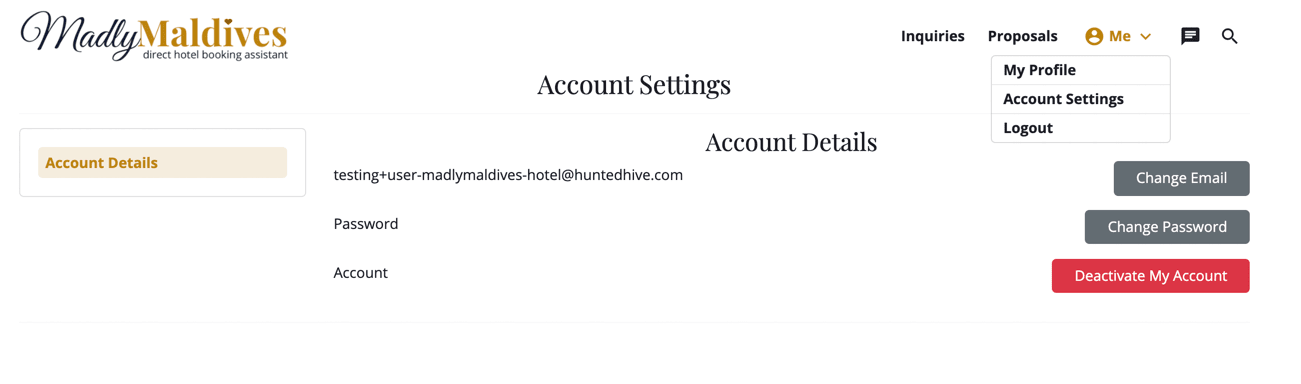
Access your account settings by clicking the user menu icon account_circle in the top navigation bar and selecting the Account Settings option.
From here you can update your email address, change your password or deactivate your account.
Please send us your feedback on how we can improve your experience.
:format(webp)/madlyglobal.com/static/madlymaldives/img/logo-icon.png "Madly Global")